Neighbor Booking: Helping Teams Sit Together in a Flexible Workspace
"Neighbor booking allows employees to see where their colleagues are sitting before they reserve a desk. This practice improves team coordination in hybrid offices by ensuring groups can sit together without requiring permanent assigned seating. It works best when backed by real-time check-in data rather than just calendar reservations. "

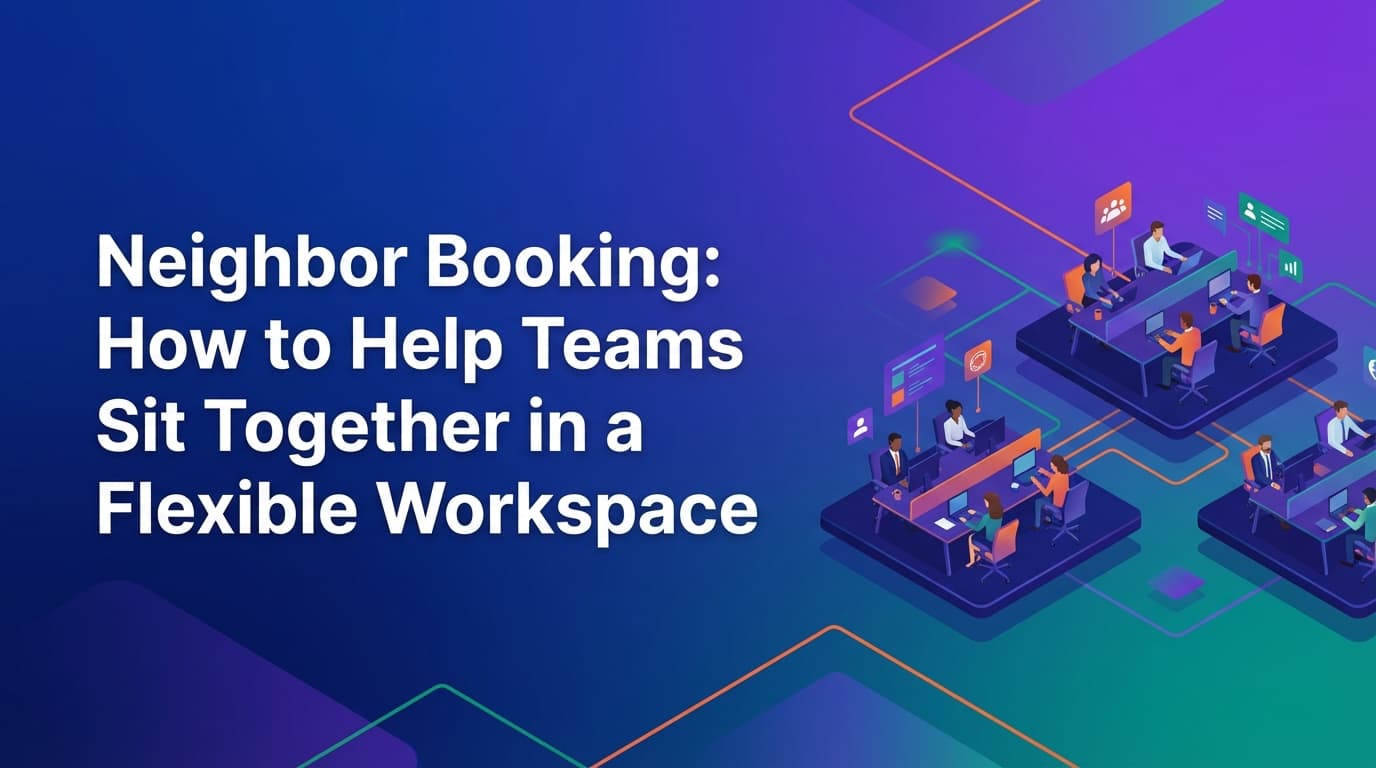
Neighbor booking is a desk management strategy that helps employees find and sit near their colleagues in a flexible office. Unlike traditional assigned seating, neighbor booking surfaces where teammates have already reserved space, allowing others to book adjacent desks. Because WOX uses a unified data model, these "neighbor" locations are based on real-time check-ins rather than just calendar entries. This ensures that when an employee looks for a teammate, they find someone who is actually in the building.
Why is neighbor booking important for hybrid teams?
The primary reason employees go to the office in a hybrid model is to work with other people. If a team arrives at the office only to find themselves scattered across different floors or wings, the primary value of the commute is lost.
Without visibility into where others are sitting, employees often resort to manual coordination via Slack or email. This is inefficient and prone to error. Neighbor booking automates this visibility. It allows the workplace to remain flexible—meaning desks aren't sitting empty when a team is remote—while still providing the social and professional benefits of proximity when teams are onsite.
How does neighbor booking work in a flexible workspace?
Neighbor booking functions as a layer of visibility on top of a standard desk reservation system. When an employee opens the office map, they can see the names or icons of teammates who have already booked desks for that day.
In WOX, this visibility is tied to the operational lifecycle of the desk. When a user looks for a neighbor, the system checks the current state of the resource. If a teammate has booked a desk but failed to check in within the required window (e.g., 20 minutes), the system auto-releases that desk. This prevents employees from sitting next to "ghost" bookings—desks that appear occupied on a map but are actually empty because the original booker stayed home.
Because WOX uses a resource-agnostic model, this logic isn't limited to desks. Teams can use neighbor booking to cluster around lab benches, specialized equipment, or specific project zones. The system treats every resource as a set of rules and availability, allowing operations teams to define what "proximity" means for different parts of the office.
Where traditional booking tools fall short for teams
Most desk booking tools are built as thin wrappers around a calendar (like Google or Outlook). This creates several points of failure for team coordination:
- Assumption of occupancy: Calendar-based tools assume that a booking equals a person in a seat. They don't require a check-in. If a team lead books a block of ten desks but only five people show up, the other five desks remain "booked" and unavailable to others, even though they are physically empty.
- Static neighborhoods: Many tools require facilities teams to hardcode "neighborhoods" into the floor plan. If the Marketing team grows or the Engineering team moves to a new project, changing these zones usually requires a vendor request or a new CAD file upload.
- Lack of policy enforcement: Basic tools might show you where a neighbor is, but they can't prevent a different department from booking the last desk in your cluster. They lack the logic to reserve specific zones for specific roles or teams during peak hours.
- Fragmented data: When booking happens in one tool and check-in happens (or doesn't happen) in another, the data is useless for planning. You can't tell if teams are actually sitting together or if they are just booking near each other and then wandering off to find quiet space.
WOX avoids these issues by acting as the infrastructure for the workplace. Because policy changes propagate instantly across the unified system, an operations manager can adjust a team's neighborhood boundaries in seconds without needing a technical background or a CAD specialist.
How do you configure neighbor booking policies?
Effective neighbor booking requires more than just a "see my friends" button. It requires operational rules that balance team needs with total office capacity.
1. Define team groupings via SCIM
Instead of manually creating lists of employees, use SCIM (System for Cross-domain Identity Management) to sync your organizational structure directly from your identity provider (like Okta or Azure AD). This ensures that when a new hire joins the Engineering team, they automatically gain the same neighbor visibility and booking permissions as their teammates.
2. Implement check-in enforcement
Neighbor booking is only useful if the data is accurate. Set a policy that requires employees to check in—either via a mobile app, a QR code at the desk, or an automated sensor. If they don't check in, the desk is released. This keeps the "neighbor" map clean and ensures that people who are actually in the office can find space.
3. Use multi-modal booking logic
You don't have to make every desk available to everyone. You can set policies where certain clusters are "Team-First." For example, desks in Zone A might be exclusive to the Product team until 10:00 AM. After that, any remaining desks become "free time" resources available for anyone to book. This protects the team's ability to sit together while maximizing total office utilization.
What are the privacy considerations for neighbor booking?
Privacy is a common concern when implementing neighbor booking. Not every employee wants their exact location broadcasted to the entire company at all times.
Enterprise governance should be built into the core of the system. In WOX, role-based controls allow operations teams to set granular visibility levels. You might decide that:
- Employees can always see their direct teammates.
- Managers can see their entire department.
- General employees can see that a desk is "occupied" by someone from a specific department, but not the individual's name, unless they are in the same working group.
This approach provides the coordination benefits of neighbor booking without creating a "surveillance" atmosphere.
How to track the success of team-based seating
To understand if neighbor booking is working, you need to look at utilization data, not just booking logs.
WOX generates audit-grade data by comparing reservations against actual check-ins. If your data shows that the Marketing team is booking desks near each other but only checking in 40% of the time, you have a "no-show" problem that neighbor booking alone won't fix. You may need to adjust your auto-release windows or change the size of their designated zone.
Conversely, if a specific team has a 95% check-in rate and their zone is always at 100% capacity, it's a clear signal that they need more space. Because WOX allows for self-service spatial modeling, the operations team can expand that team's neighborhood in the system immediately, rather than waiting for a quarterly real estate review.
Steps to implement neighbor booking
- Audit your current spatial data: Ensure your floor plans are accurate. With WOX, you can model these spaces yourself without needing external CAD support.
- Sync your organizational data: Connect your HRIS or Identity Provider so the system knows who belongs to which team.
- Set your check-in window: Decide how long a desk should stay "booked" before it's released for others to use. Fifteen to twenty minutes is a common standard.
- Define visibility rules: Determine who can see whom on the office map based on your company's privacy culture.
- Communicate the "Why": Explain to employees that neighbor booking isn't about tracking them; it's about making sure they don't commute for an hour only to sit alone.
The next step in optimizing your office is moving away from static assumptions. By treating your workplace as a dynamic system of resources and rules, you can create an environment where teams actually want to show up.
Learn more about Hybrid Work Guide
For comprehensive guidance, see our guide on hybrid work strategies and implementation.
Want to learn more about Hybrid Work?
Explore our complete guide with more articles like this one.